> ## Documentation Index
> Fetch the complete documentation index at: https://docs.2extract.com/llms.txt
> Use this file to discover all available pages before exploring further.
# Billing & Usage
> Understand how our pricing works, from the central account balance and Pay-As-You-Go plan to future subscription models.
To unlock deposits over \$50, verify your identity.
At 2extract.com, we believe in transparent and predictable pricing. This guide explains our billing model, how to manage your funds, and how to track your usage.
## How Our Billing Works: Balance vs. Subscriptions
Our billing system is designed for flexibility, combining a central account balance with per-proxy plans.
Think of this as your central wallet for all Pay-As-You-Go (PAYG) activity. You top up this balance with funds, and your PAYG proxies consume traffic by deducting costs from it. This balance is shared across all your PAYG proxies.
For predictable, high-volume needs, you will be able to assign a monthly subscription plan to a specific proxy. This will give the proxy a dedicated traffic allowance for a fixed monthly fee. This feature is not yet available.
**Key takeaway:** Your **Account Balance** is for flexible, on-demand usage (PAYG). Subscription plans for predictable, recurring needs are coming soon.
## Topping Up Your Balance (Pay-As-You-Go)
The Pay-As-You-Go (PAYG) plan is the default for all new proxies and offers maximum flexibility.
1. **Navigate to the [Billing](https://2extract.com/billing) page.** Here you'll see your current balance
2. **Choose an amount.** You can select a predefined amount or enter a custom one
3. **Complete the payment.** You will be redirected to our secure payment partner, Stripe, to complete the transaction
Your funds will be added to your account balance immediately after the payment is confirmed. This balance never expires as long as your account is active.
***
## Setting Up Auto Top-Up (Coming Soon)
To ensure your PAYG proxies run without interruption, you will be able to enable Auto Top-Up.
* **How it will work:** When your account balance falls below a threshold you set (e.g., $10), we will automatically charge your saved payment method for a predefined amount (e.g., $50).
* **Control:** You will have full control over the thresholds, amounts, and the payment method used.
This feature is perfect for mission-critical tasks where downtime is not an option.
***
## Understanding Your Usage Statistics
We provide detailed statistics so you always know where your traffic is going.
* **Dashboard:** The main dashboard gives you a high-level overview of your **total** traffic consumption across all proxies.
* **"My Proxies" Page:** This screen shows the traffic used and cost incurred for **each individual proxy** in the current billing period.
* **Proxy Settings Page:** For the most detailed breakdown, navigate to a specific proxy's settings page. Here you'll find a chart visualizing its daily usage of both traffic and requests.
***
## Understanding Your Billing Page
The **Billing** page is your central hub for managing your account's finances. It shows you the "big picture" — all the **transactions** that add or remove funds from your main account balance.
This includes events like:
* Manual Top-ups
* Automatic Top-ups (in the future)
* Subscription payments (in the future)
* Refunds or credit adjustments
#### Where to Find Pay-As-You-Go Spending Details?
The Transaction History on the Billing page **does not** show every small deduction for Pay-As-You-Go traffic. This is done intentionally to keep your history clean and readable.
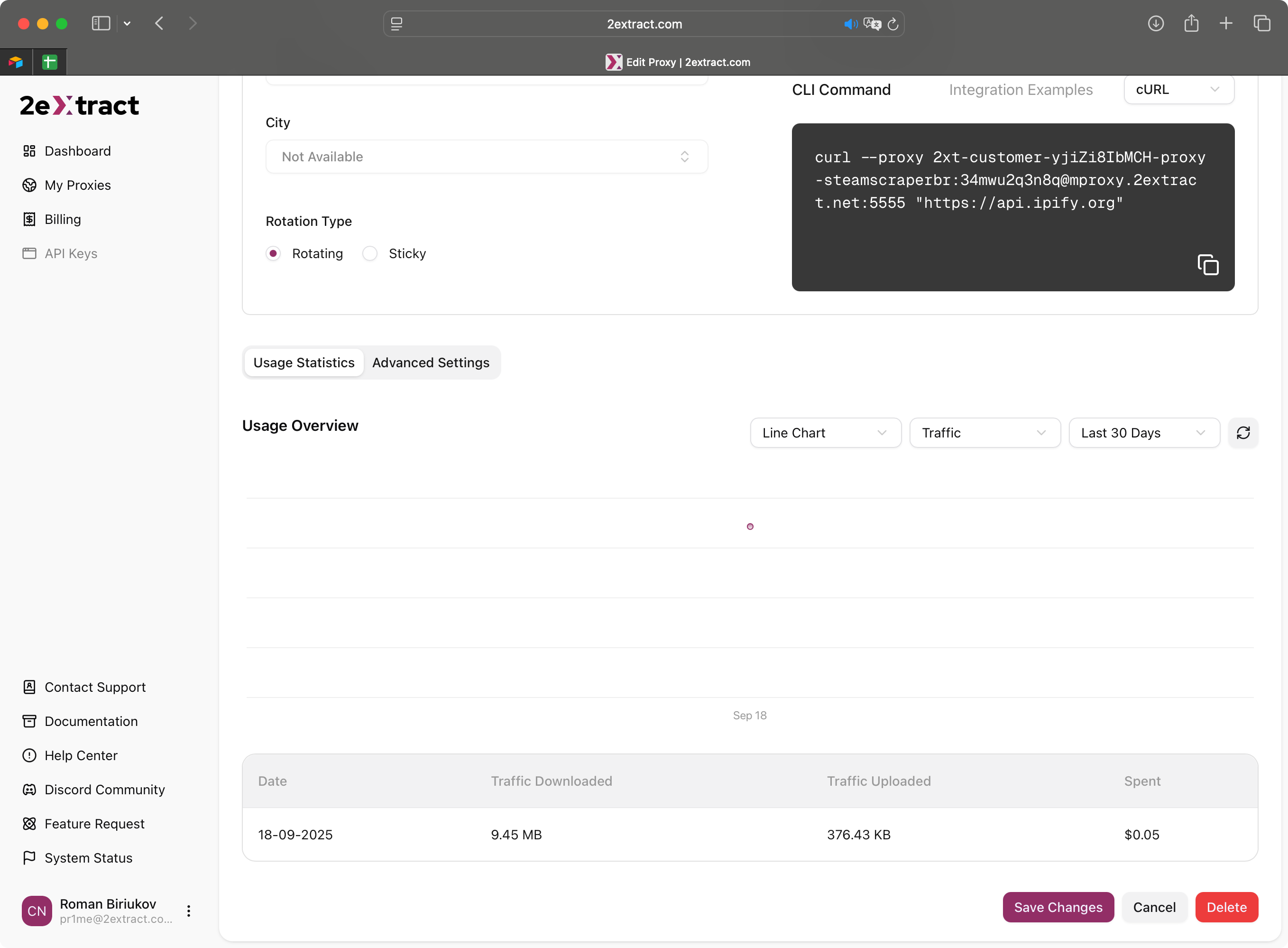 To see a detailed breakdown of how much a **specific proxy** has spent from your balance:
1. Navigate to the **[My Proxies](https://2extract.com/proxies)** page
2. Click on the name of the proxy you want to inspect
3. On the **Proxy Settings** page, you will find the **Usage Statistics** block, which shows the exact traffic consumed and the corresponding cost for that specific proxy
This approach allows you to see both your overall account funding history (on the Billing page) and the specific operational costs of each project (on the Proxy Settings page).
***
## Accessing Invoices
For your accounting needs, all your payment history and official invoices are available directly from our secure payment partner.
1. Navigate to the **[Billing](https://2extract.com/billing)** page.
2. Click the **"View Full History & Invoices"** button.
3. You will be securely redirected to your personal **Stripe Customer Portal**.
In the portal, you can view all past transactions, download PDF invoices, and manage your saved payment methods.
To see a detailed breakdown of how much a **specific proxy** has spent from your balance:
1. Navigate to the **[My Proxies](https://2extract.com/proxies)** page
2. Click on the name of the proxy you want to inspect
3. On the **Proxy Settings** page, you will find the **Usage Statistics** block, which shows the exact traffic consumed and the corresponding cost for that specific proxy
This approach allows you to see both your overall account funding history (on the Billing page) and the specific operational costs of each project (on the Proxy Settings page).
***
## Accessing Invoices
For your accounting needs, all your payment history and official invoices are available directly from our secure payment partner.
1. Navigate to the **[Billing](https://2extract.com/billing)** page.
2. Click the **"View Full History & Invoices"** button.
3. You will be securely redirected to your personal **Stripe Customer Portal**.
In the portal, you can view all past transactions, download PDF invoices, and manage your saved payment methods.