> ## Documentation Index
> Fetch the complete documentation index at: https://docs.2extract.com/llms.txt
> Use this file to discover all available pages before exploring further.
# Identity Verification (KYC)
> How to verify your account to unlock higher deposit limits.
To ensure the security of our platform and comply with financial regulations, 2extract requires users to complete a Know Your Customer (KYC) verification process to access full billing features.
**Deposit Limit:** Unverified accounts have a cumulative lifetime deposit limit of **\$50**. To deposit more funds, you must complete identity verification.
## Why is verification required?
We implement identity verification to prevent fraud, ensure compliance with international laws, and maintain a high-quality network for all our users.
Once you are verified, you will unlock:
* **Unlimited deposits:** Remove the \$50 cap on your balance top-ups.
* **Trust status:** Reduced risk of automated security flags on your account.
## Our Partner: Didit
We value your privacy and data security. That is why we do not store your personal identity documents on our servers.
We partner with **[Didit](https://didit.me/)**, a specialized and GDPR-compliant identity verification provider. Didit handles the secure processing and validation of your documents. 2extract only receives the confirmation status (Verified/Rejected).
## How to Verify Your Account
The verification process is fast and usually takes less than 5 minutes. You will need a valid government-issued ID (Passport, Driver's License, or National ID Card).
You don't have to wait until you hit the deposit limit. You can verify your account voluntarily at any time:
1. Navigate to the **[Profile](https://2extract.com/app/profile)** page.
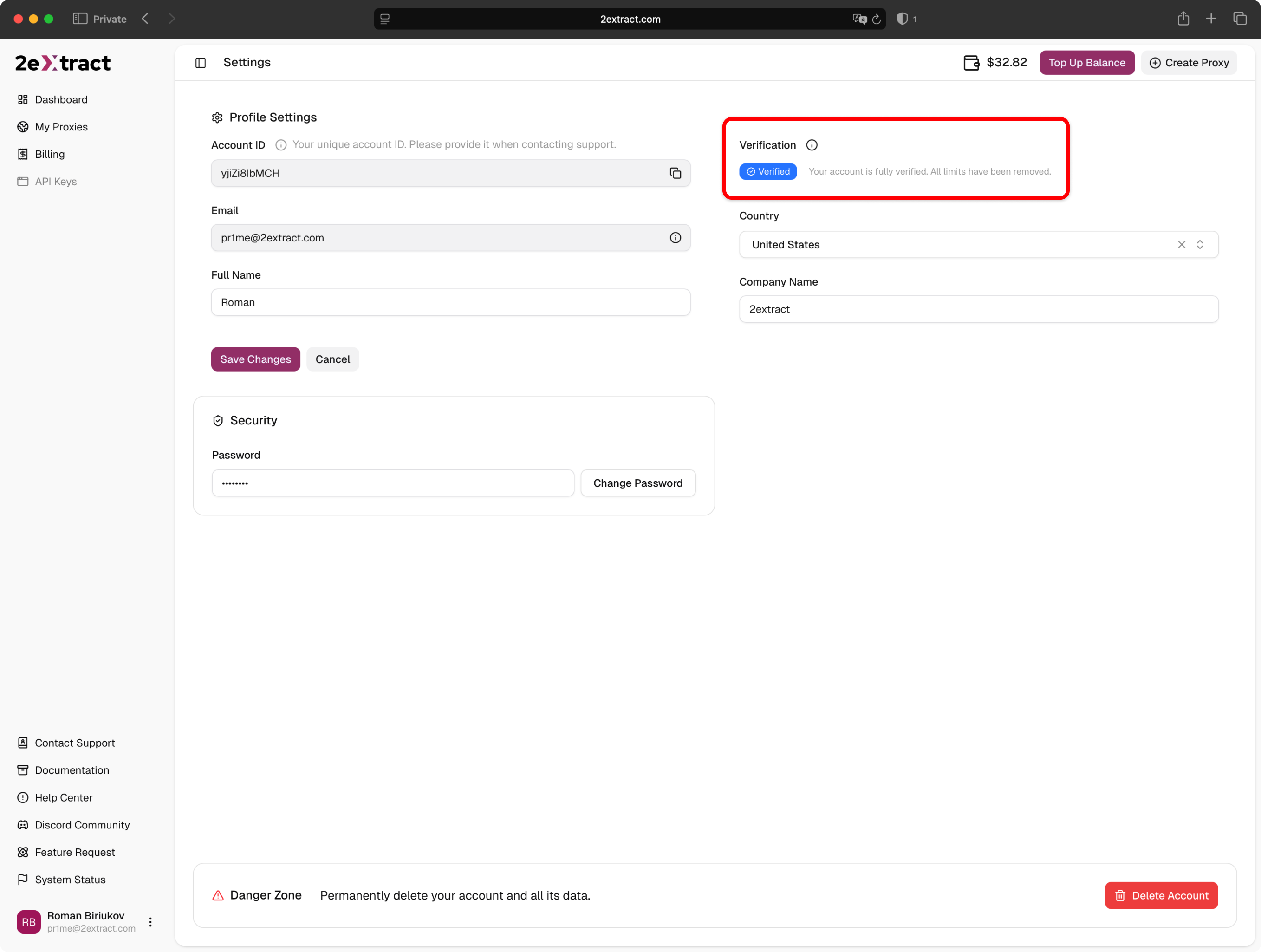
2. Locate the **Verification** section.
3. Click the **Start Verification** button.
The Didit interface will open directly in the same window. To ensure the best image quality, the process is designed to be completed on a mobile device.
**Scan the QR code** displayed on your screen using your smartphone's camera and follow the instructions on your phone.
On your mobile device, you will be asked to:
1. Take a photo of your **government-issued ID** (Passport, Driver's License, etc.).
2. Take a **selfie** to prove that you are the owner of the document.
The system will automatically validate the authenticity of your documents and verify your identity.
Upon success, your account status will instantly change to **Verified**, and all deposit restrictions will be removed. You will see a confirmation in your profile.
 ## Document Requirements
To ensure your verification is approved on the first try, please follow these guidelines:
* **Validity:** The document must be valid and not expired.
* **Quality:** Photos must be in color and high resolution.
* **Condition:** The document should not be physically damaged.
## Troubleshooting
If your verification was declined, Didit usually provides a reason. Common reasons include:
* **Blurry Image:** The camera failed to focus. Please retake the photo in better lighting.
* **Glare:** Flash or overhead lights made parts of the ID unreadable.
* **Cut-off corners:** All four corners of the document must be visible in the frame.
* **Unsupported Document:** You used a student ID, library card, or bank card instead of a government ID.
If you believe your document was rejected in error, or if you encounter technical issues during the process, please contact us [support@2extract.com](mailto:support@2extract.com).
## Document Requirements
To ensure your verification is approved on the first try, please follow these guidelines:
* **Validity:** The document must be valid and not expired.
* **Quality:** Photos must be in color and high resolution.
* **Condition:** The document should not be physically damaged.
## Troubleshooting
If your verification was declined, Didit usually provides a reason. Common reasons include:
* **Blurry Image:** The camera failed to focus. Please retake the photo in better lighting.
* **Glare:** Flash or overhead lights made parts of the ID unreadable.
* **Cut-off corners:** All four corners of the document must be visible in the frame.
* **Unsupported Document:** You used a student ID, library card, or bank card instead of a government ID.
If you believe your document was rejected in error, or if you encounter technical issues during the process, please contact us [support@2extract.com](mailto:support@2extract.com).