> ## Documentation Index
> Fetch the complete documentation index at: https://docs.2extract.com/llms.txt
> Use this file to discover all available pages before exploring further.
# My proxy is not connecting (407 Error)
> A step-by-step checklist to diagnose and fix the most common connection error, the 407 error.
The `407 Proxy Authentication Required` error is the most common issue you might encounter. The good news is that it's almost always easy to fix. This error means our gateway is rejecting your connection request, and it's always due to one of the four reasons below.
Follow this checklist step-by-step to solve the problem.
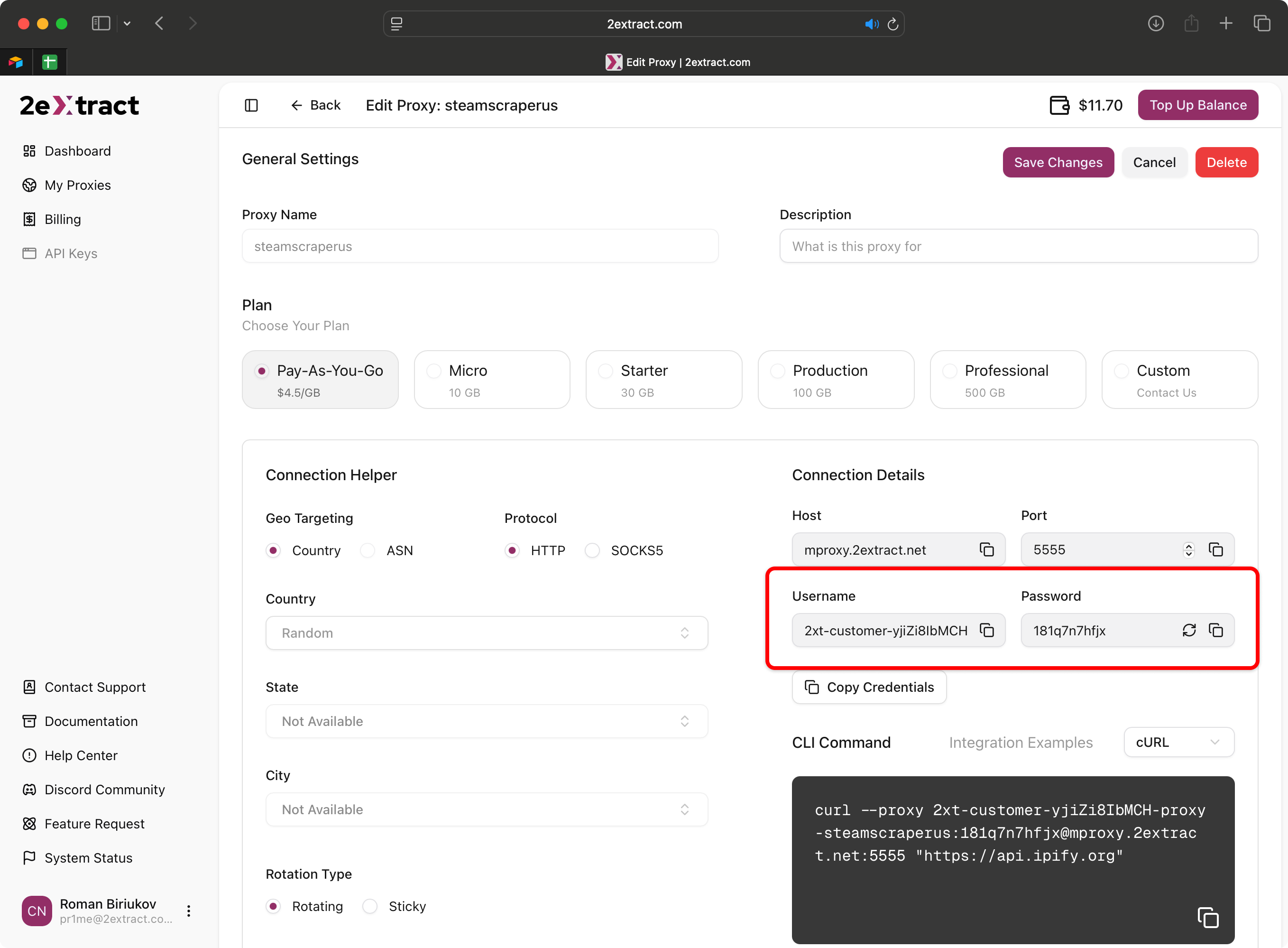
### Step 1: Check Your Proxy Credentials
The most common cause is a simple typo in your username or password.
1. Navigate to the **[My Proxies](https://2extract.com/app/proxies)** page and click on the proxy you are using.
2. In the **Connection Details** block, carefully copy the `Username` and `Password` again.
3. Paste them directly into your script or tool, ensuring there are no extra spaces or characters.
 ### Step 2: Verify Your IP Whitelist
If you are using IP whitelisting, your current IP address must be in the `Authorized IPs` list for that specific proxy.
1. Find your current IP address. A simple way is to google "what is my IP".
2. Go to your proxy's settings page and find the **Advanced Security** section.
3. Check the **Authorized IPs** list. Does it contain your current IP address?
### Step 2: Verify Your IP Whitelist
If you are using IP whitelisting, your current IP address must be in the `Authorized IPs` list for that specific proxy.
1. Find your current IP address. A simple way is to google "what is my IP".
2. Go to your proxy's settings page and find the **Advanced Security** section.
3. Check the **Authorized IPs** list. Does it contain your current IP address?
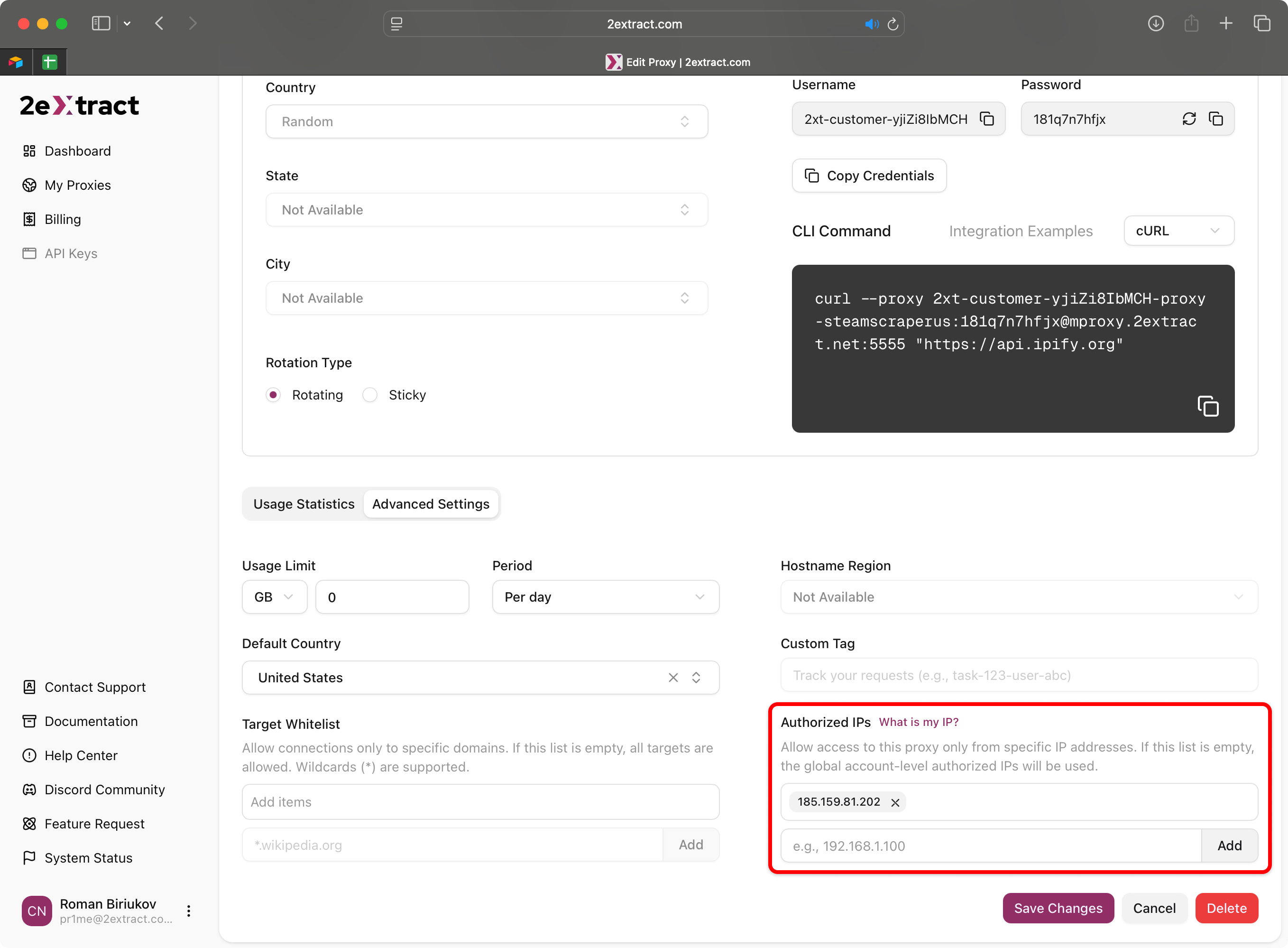 Remember, if a proxy has its own `Authorized IPs` list, the global account-level whitelist is ignored for that proxy.
### Step 3: Check Your Account Balance
Our Pay-As-You-Go proxies stop working the moment your account balance reaches zero.
1. Navigate to the **[Billing](https://2extract.com/app/billing)** page.
2. Check your **Current Balance**. If it is \$0.00 or less, your proxies have been automatically suspended.
3. **Solution:** Simply top up your balance to reactivate them instantly.
### Step 4: Check The Proxy Status
Ensure the proxy you are trying to use is active.
1. Navigate to the **[My Proxies](https://2extract.com/app/proxies)** page.
2. Find your proxy in the list and check its **Status** badge.
3. If the status is `Inactive` or `Suspended`, your proxy will not accept connections. You can reactivate an `Inactive` proxy from the "Actions" menu. If it's `Suspended`, check your balance or usage limits.
Remember, if a proxy has its own `Authorized IPs` list, the global account-level whitelist is ignored for that proxy.
### Step 3: Check Your Account Balance
Our Pay-As-You-Go proxies stop working the moment your account balance reaches zero.
1. Navigate to the **[Billing](https://2extract.com/app/billing)** page.
2. Check your **Current Balance**. If it is \$0.00 or less, your proxies have been automatically suspended.
3. **Solution:** Simply top up your balance to reactivate them instantly.
### Step 4: Check The Proxy Status
Ensure the proxy you are trying to use is active.
1. Navigate to the **[My Proxies](https://2extract.com/app/proxies)** page.
2. Find your proxy in the list and check its **Status** badge.
3. If the status is `Inactive` or `Suspended`, your proxy will not accept connections. You can reactivate an `Inactive` proxy from the "Actions" menu. If it's `Suspended`, check your balance or usage limits.