> ## Documentation Index
> Fetch the complete documentation index at: https://docs.2extract.com/llms.txt
> Use this file to discover all available pages before exploring further.
# Endpoint Generator (Interactive Tool)
> Learn how to use the interactive Connection Helper on the Proxy Settings page to visually build and customize your proxy connection strings.
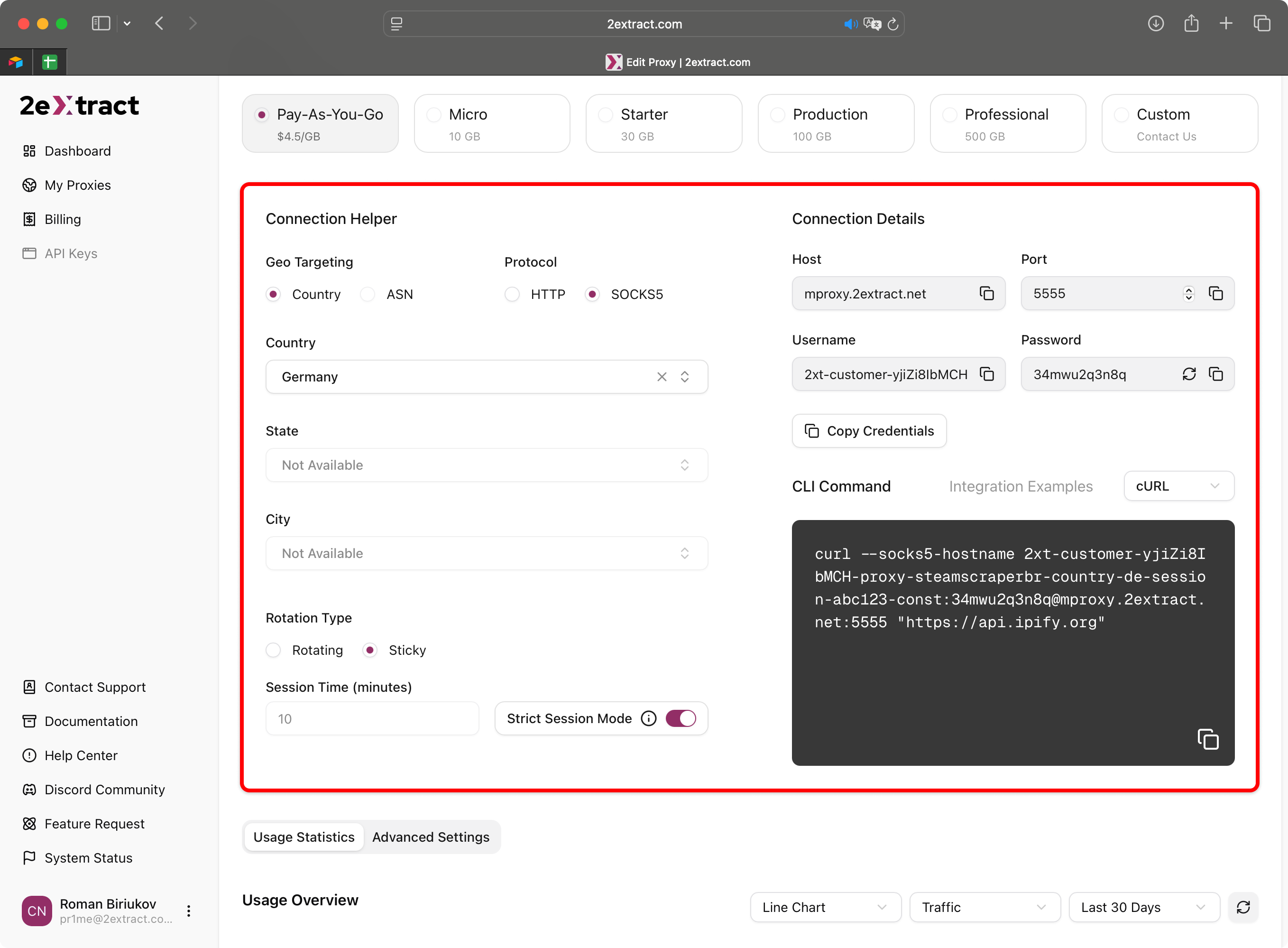
The **Connection Helper** is a powerful interactive tool located on every **Proxy Settings** page. Its purpose is to help you visually construct the perfect `username` string with all the targeting and session parameters you need, without having to memorize the syntax.
This guide explains how to use it.
 ## How It Works
The Connection Helper is simple:
1. You make selections in the UI (e.g., choose a country, set a session type).
2. The tool **instantly and automatically** updates the `Username` field in the "Connection Details" block and the code in the "Integration Examples" snippet.
This allows you to visually build your configuration and immediately copy the ready-to-use credentials or code.
***
## Configuring Your Request
The helper is organized into logical sections to make configuration easy.
### Geo-Targeting
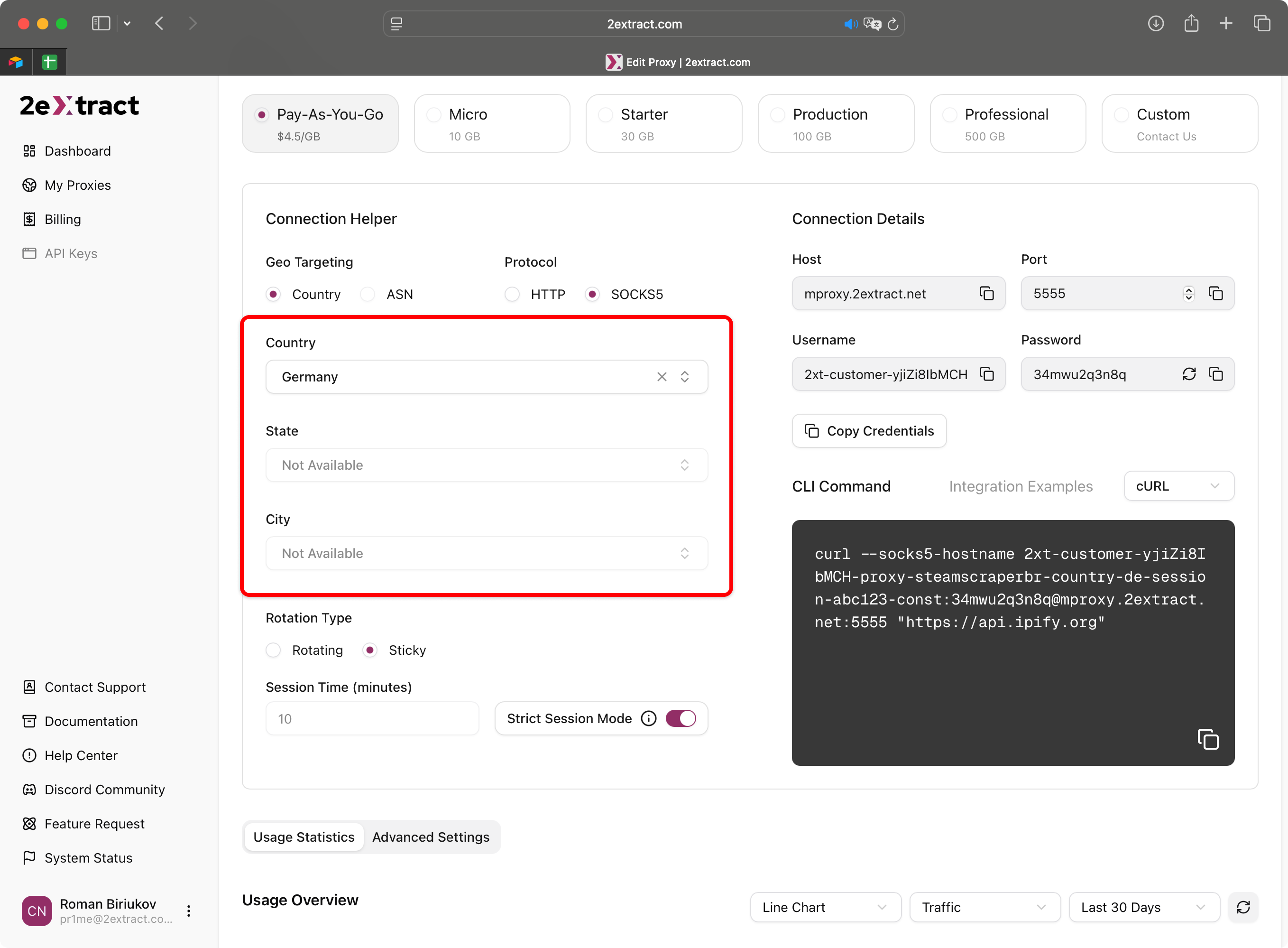
This is where you define the location of your proxy.
1. **Start by selecting your Targeting Type:** Choose between `Country`, `ASN`, etc.
2. **Select your target:** Based on your choice, a set of fields will appear. For example, if you choose `Country`, you can then select a specific country, an optional state (for the US), and an optional city.
3. **For Mobile Proxies (coming soon),** you will also see options to select a specific `Carrier` and `Mobile OS`.
## How It Works
The Connection Helper is simple:
1. You make selections in the UI (e.g., choose a country, set a session type).
2. The tool **instantly and automatically** updates the `Username` field in the "Connection Details" block and the code in the "Integration Examples" snippet.
This allows you to visually build your configuration and immediately copy the ready-to-use credentials or code.
***
## Configuring Your Request
The helper is organized into logical sections to make configuration easy.
### Geo-Targeting
This is where you define the location of your proxy.
1. **Start by selecting your Targeting Type:** Choose between `Country`, `ASN`, etc.
2. **Select your target:** Based on your choice, a set of fields will appear. For example, if you choose `Country`, you can then select a specific country, an optional state (for the US), and an optional city.
3. **For Mobile Proxies (coming soon),** you will also see options to select a specific `Carrier` and `Mobile OS`.
 ### Session Control
This section controls how the IP address rotates.
1. **Choose your Rotation Type:** Select `Rotating` for a new IP on every request, or `Sticky` to maintain the same IP.
2. **If you select `Sticky`:**
* Enter a **Session ID** (a random one is generated for you).
* Optionally, set a custom **Session Time** in minutes.
* Enable **Strict Session** if your workflow cannot tolerate an IP change under any circumstances.
***
## Seeing the Result in Real-Time
The main power of the Connection Helper is its instant feedback. As you change the settings, you will see two blocks on the page update immediately.
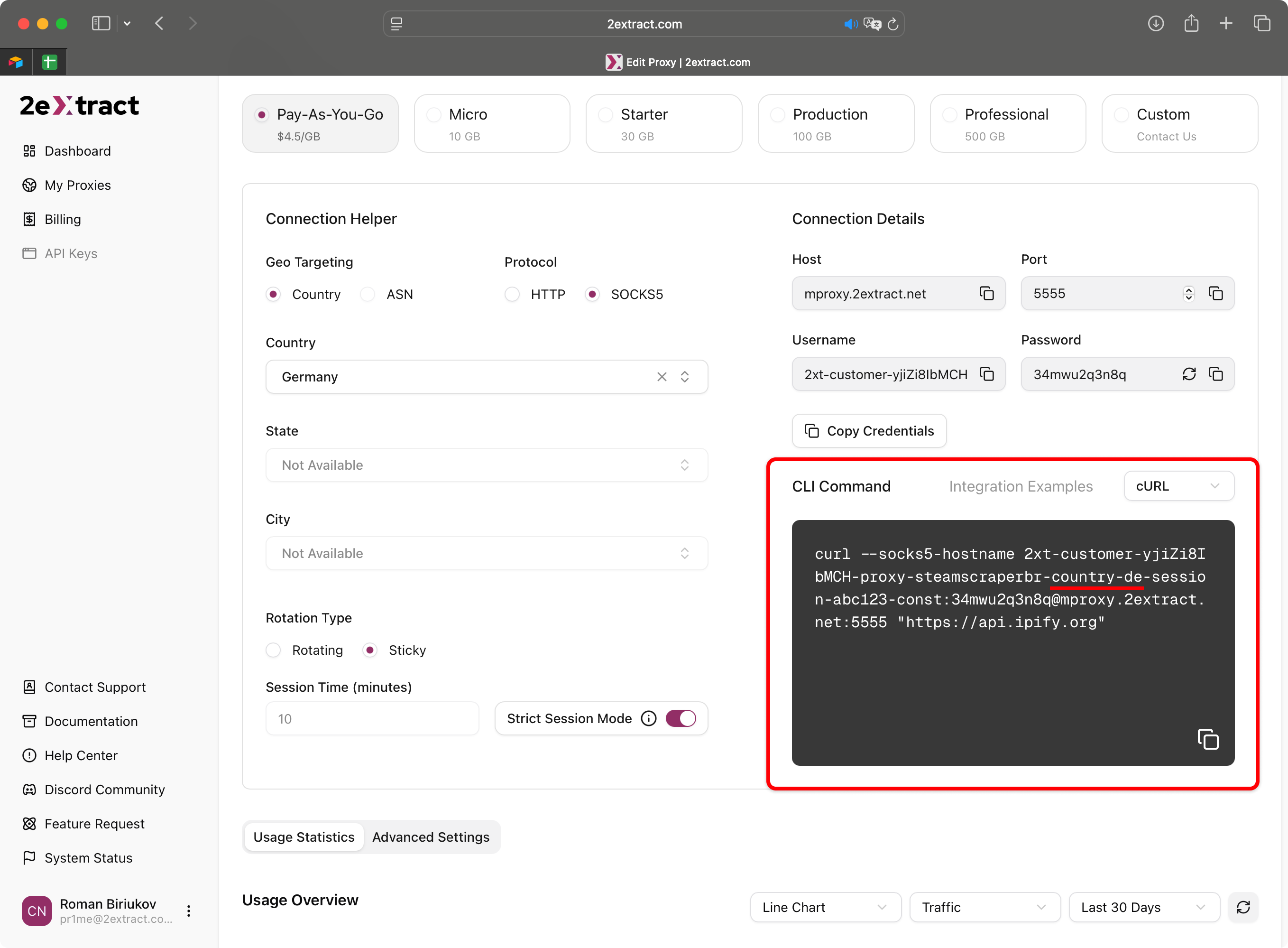
1. **The `Username` in "Connection Details":** Watch as parameters like `-country-de` or `-session-user123` are automatically added or removed from your username string.
2. **The Code in "Integration Examples":** The entire code snippet (for cURL, Python, etc.) rebuilds itself with the newly generated username, ready for you to copy and paste.
### Session Control
This section controls how the IP address rotates.
1. **Choose your Rotation Type:** Select `Rotating` for a new IP on every request, or `Sticky` to maintain the same IP.
2. **If you select `Sticky`:**
* Enter a **Session ID** (a random one is generated for you).
* Optionally, set a custom **Session Time** in minutes.
* Enable **Strict Session** if your workflow cannot tolerate an IP change under any circumstances.
***
## Seeing the Result in Real-Time
The main power of the Connection Helper is its instant feedback. As you change the settings, you will see two blocks on the page update immediately.
1. **The `Username` in "Connection Details":** Watch as parameters like `-country-de` or `-session-user123` are automatically added or removed from your username string.
2. **The Code in "Integration Examples":** The entire code snippet (for cURL, Python, etc.) rebuilds itself with the newly generated username, ready for you to copy and paste.
 The Connection Helper is the fastest and most reliable way to create complex connection strings without typos. The settings you choose here are **not saved** for the proxy; they are only used to help you generate the code for your immediate use.