

Creating a key
Click Create API Key to open the creation dialog. Fill in three fields: Name - a descriptive label so you can identify the key later (e.g.Automation script, CI pipeline).
Permissions - select the access scopes the key needs. Permissions are grouped by area:
Proxies
Proxies
Statistics
Statistics
Account & Billing
Account & Billing
proxies:write does not include proxies:read - assign both if your integration needs to both create and read proxies.
Expiration - choose how long the key stays valid:
Click Create API Key to generate the key.
Saving the key
After creation, the Your New API Key dialog appears with the full key value and a Copy button. Click Done to close the dialog. From this point, only the key prefix (e.g.2xt_20fe...) is visible in the table.
Viewing and managing keys
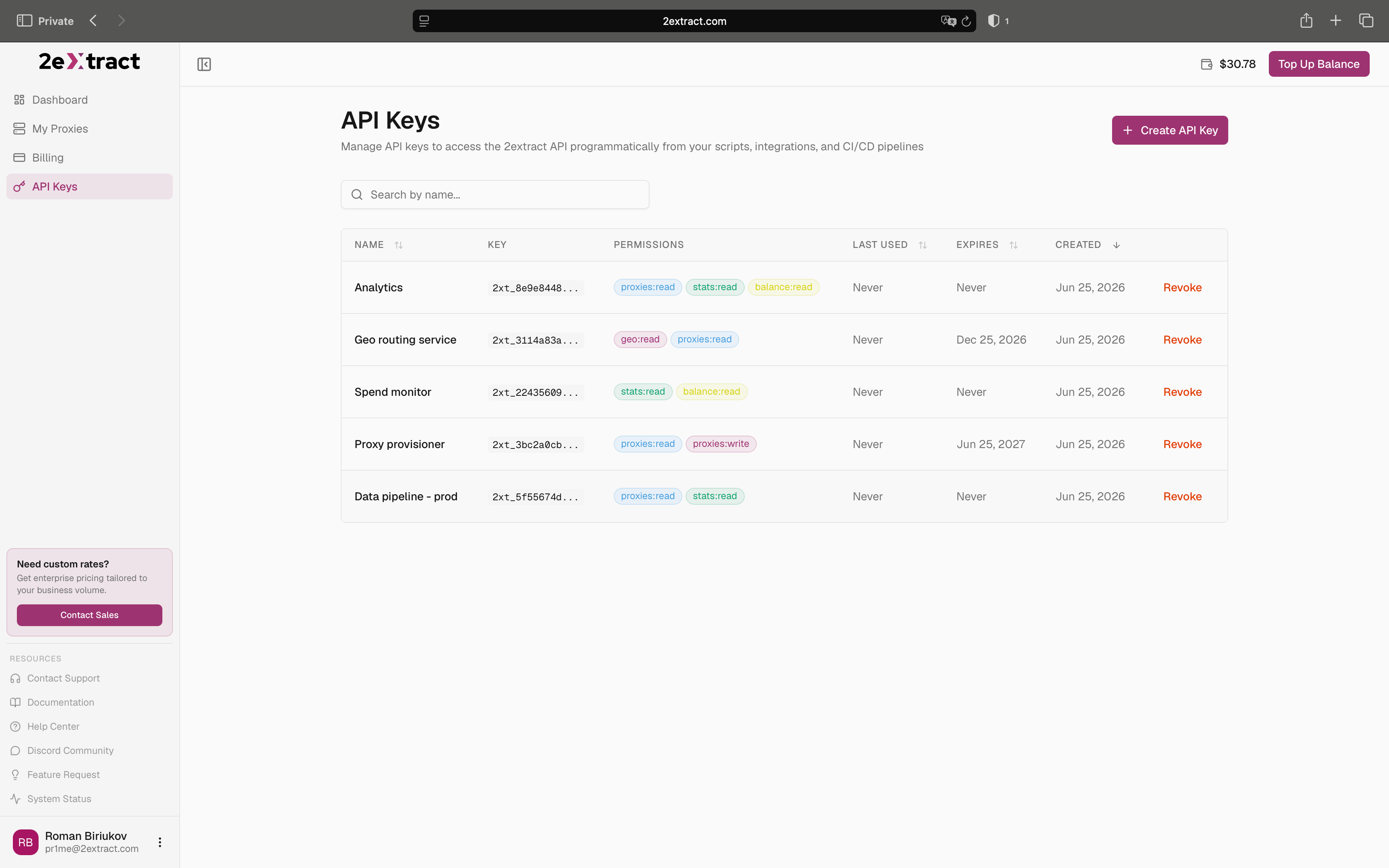
The API Keys page lists all active keys in a table with the following columns:
Use the search field to filter keys by name. Columns can be sorted by clicking the column header.
You can have up to 10 API keys per account. To create a new one when at the limit, revoke an existing key first.
Revoking a key
Click Revoke next to any key to open the confirmation dialog. Confirm by clicking Revoke in the Revoke API Key dialog. Revocation is immediate - any requests using the key will start returning401 Unauthorized instantly. This action is irreversible.
Revoke a key immediately if:
- It was accidentally committed to a repository
- A team member who had access has left
- You suspect it was leaked or compromised
Security best practices
One key per integration
Each script or service should have its own key. This way you can revoke a single key without affecting other integrations.
Minimal permissions
A monitoring script only needs
stats:read. A provisioning pipeline needs proxies:write. Never grant more than required.Use environment variables
Never hardcode keys in source code. Store them in environment variables or a secrets manager (Vault, AWS Secrets Manager, etc.).
Set an expiration
Prefer keys with an expiration date over indefinite ones. Rotate before expiry by creating a replacement key, updating your integration, then revoking the old one.